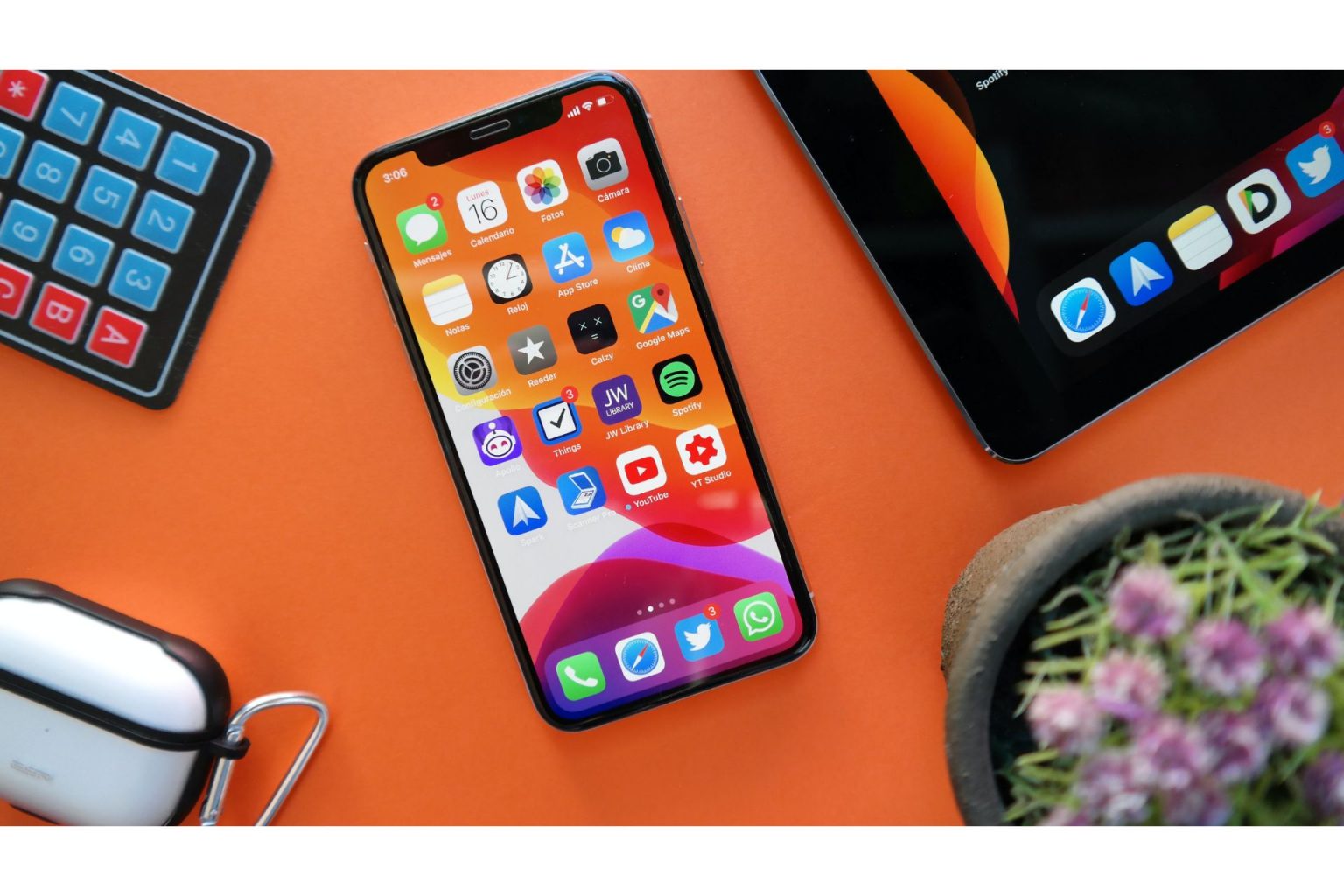
Manage storage on your iPhone without losing your favourite family memories. From manual backups to cloud storage and external drives, here’s how to keep your photos safe and accessible.
Despite the iPhone’s popularity, many users still struggle with running out of storage on their devices.
After all, unlike many Android smartphones, you can’t add more capacity with a microSD card. You’re generally stuck with the storage you purchased when you bought your iPhone.
It can be tough to get photos and videos off an iPhone so you can delete the media and free up some room.
It can be done, however, with a “good,” “better” and “alternative” approach.
The following are three ways to back up your precious memories from your iPhone or iPad while freeing up some valuable space in the process.
Good Ways to Manage Storage
A free way to remove photos and videos from an iPhone or iPad is to connect your device to a PC or Mac and manually transfer the media to your computer.
You can do this with the phone or tablet’s charging cable.
Simply plug the cable into a computer’s USB port and use Windows Explorer (for Windows) or the Photos app, Image Capture or Finder (on a Mac) to import your photos and videos. Most devices will automatically prompt you with import options once connected.
Now drag and drop (or cut and paste) them onto your computer or an external drive. It could take a while for longer videos, and you might find some stubborn files that don’t easily copy over, so double-check that it all worked.
Bottom line: This solution works, and it’s free, but it does require some tech-savviness.
If you’re on a Mac, you can also AirDrop the images over. On an iPhone, find the photos or videos you’d like to send. Locate and tap the share button (square with up arrow) and tap the Mac you’d like to send the files to. Look in your Downloads folder on your Mac to find the images.
Better Ways to Manage Storage
Another way to back up photos and videos—and then delete the local files to free up room—is to consider a cloud service.
Magically, over Wi-Fi or a cellular connection (if you have a healthy data plan), your photos and videos can be uploaded to a password-protected server in cyberspace, just in case your iPhone or iPad is lost, stolen or damaged. You can also set up your device to automatically upload a copy of a photo or video whenever you shoot them.
Convenient, but free options have storage limitations.
That is, there are several services—such as Apple’s own iCloud, Google Photos, Amazon Photos and Dropbox—but be aware you only get 5GB of remote storage for free with iCloud, and many others. Five gigabytes is likely fine for documents, but probably not enough for photos and videos, so you’ll likely need to pay for additional storage. And remember, you need an internet connection to upload and access cloud-stored content.
If you’re using iCloud Photos, another option is to turn on Optimize iPhone Storage in your settings. This stores full-resolution versions of your photos and videos in iCloud while keeping smaller, space-saving versions on your device.
iCloud offers several paid storage tiers beyond its free plan. Pricing and storage options change periodically, so it’s best to check Apple’s website for current plans.
Personally, I use OneDrive, which includes 1TB of storage as part of a Microsoft 365 Personal subscription, along with access to Outlook, Word, Excel, PowerPoint and other Microsoft apps.
Google Photos remains another popular option for families, thanks to its automatic backup features and powerful search tools, which can make it easier to find specific people, places or events in large photo libraries.
Alternative Ways to Manage Storage
The quickest and easiest alternative is to consider one of the specialty flash drives available.
If you haven’t seen these, they’re flash drives designed to connect directly to an iPhone or iPad. Depending on your device, this may be through a Lightning or USB-C connection.
No internet connection or subscription is required.
Several manufacturers now offer flash drives designed specifically for mobile devices. For example, SanDisk’s iXpand line includes models designed for both Lightning and USB-C devices, making it easy to move files between phones, tablets and computers.
You’re prompted to download the SanDisk companion app once you plug in the drive (for the first time), which lets you then select what files to back up onto the drive (or restore to a new iPhone or iPad).
You can also view files from within the app. In fact, you can load up the drive with photos, videos and music—say, from your computer—and then access this content on your iPhone or iPad right from the drive itself. That way, you don’t have to use up any internal storage.
Again, these drives can work with many Android phones and tablets, depending on the model.
You can password-protect files on the SanDisk iXpand Flash Drive in case you lose it, plus there’s a key loop in case you want to clip it to a set of car keys, a purse or backpack.
These drives are available in a variety of storage capacities to suit different needs and budgets.
Follow Marc Saltzman on Twitter: @marc_saltzman or subscribe to his podcast, Tech It Out at marcsaltzman.com.